Start with your location
Check coverage for your postcode and house number. Compare the most likely transmitter with alternatives; nearest does not always mean best.
UK Aerial Helper is a TV aerial alignment app for iPhone that helps you find your likely transmitter, understand the compass direction and check the aerial bearing. Use our guides to tackle reception problems at home or away.
Setting up your TV starts with understanding your aerial. Take a closer look at our iPhone app before your next setup.
£0.99 one-off purchase in the UK. Current price and full product details are shown on the App Store.
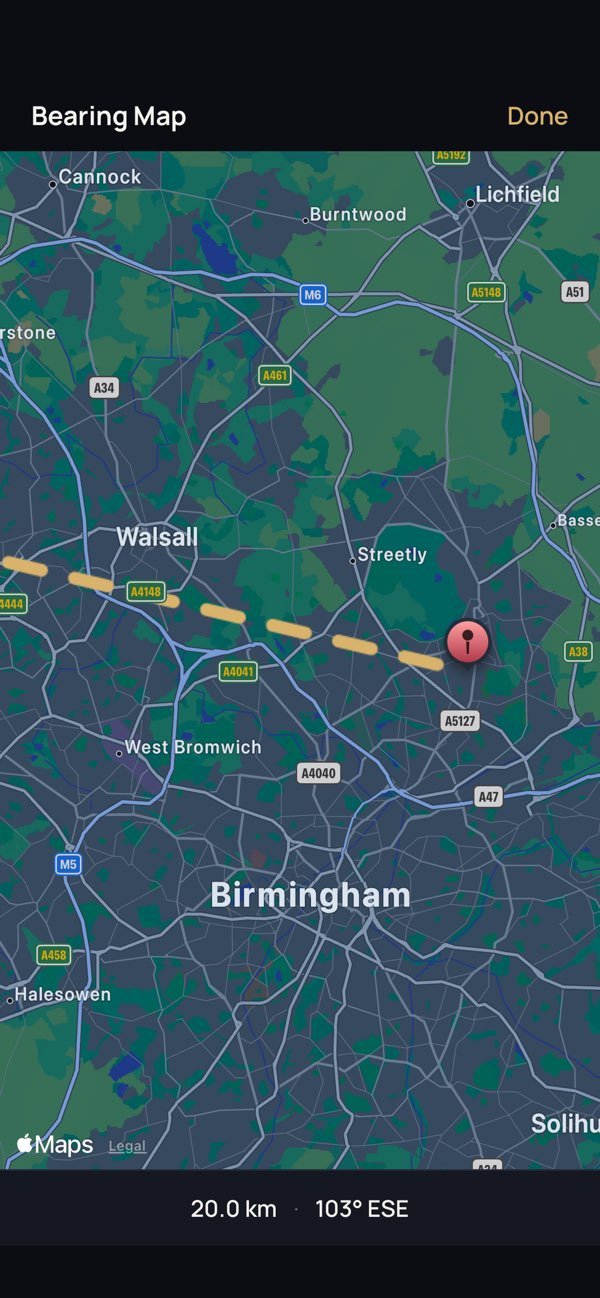
These are the current screenshots published on the UK Aerial Helper App Store page. They show postcode entry, compass guidance, alignment feedback and the bearing map.
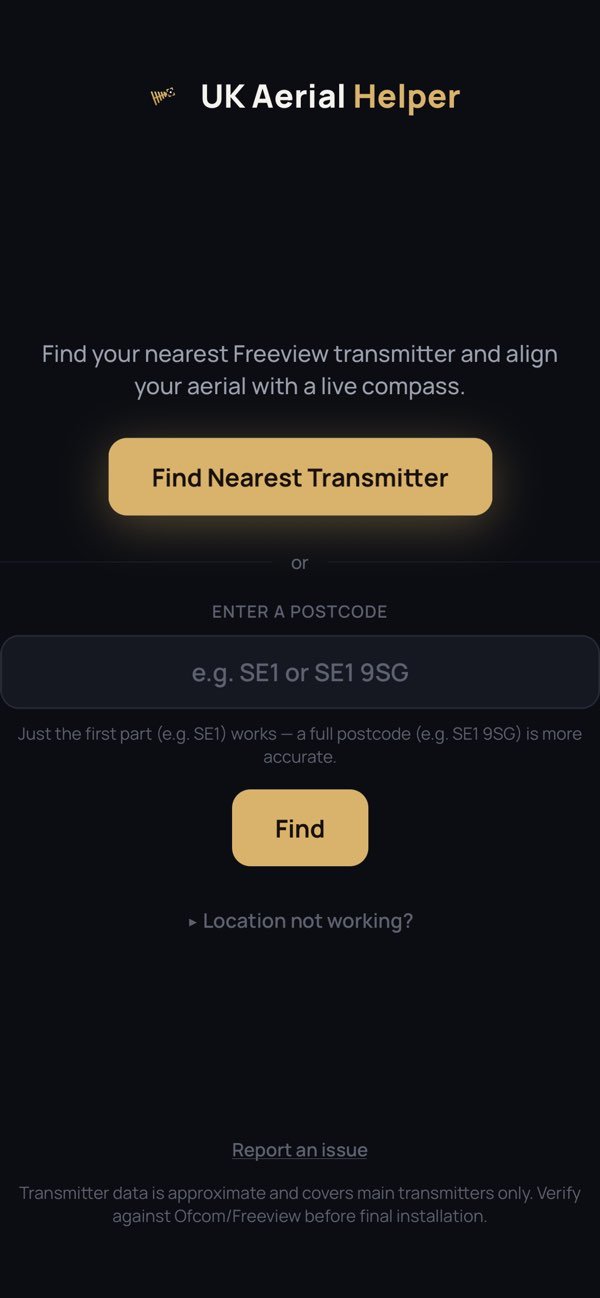
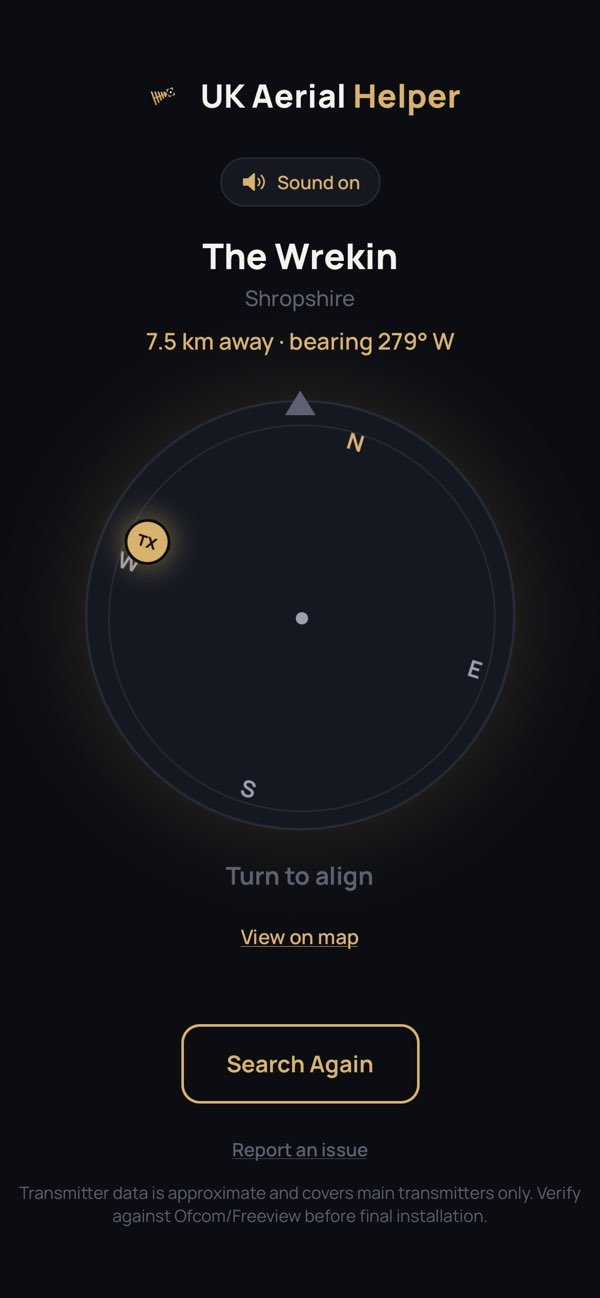
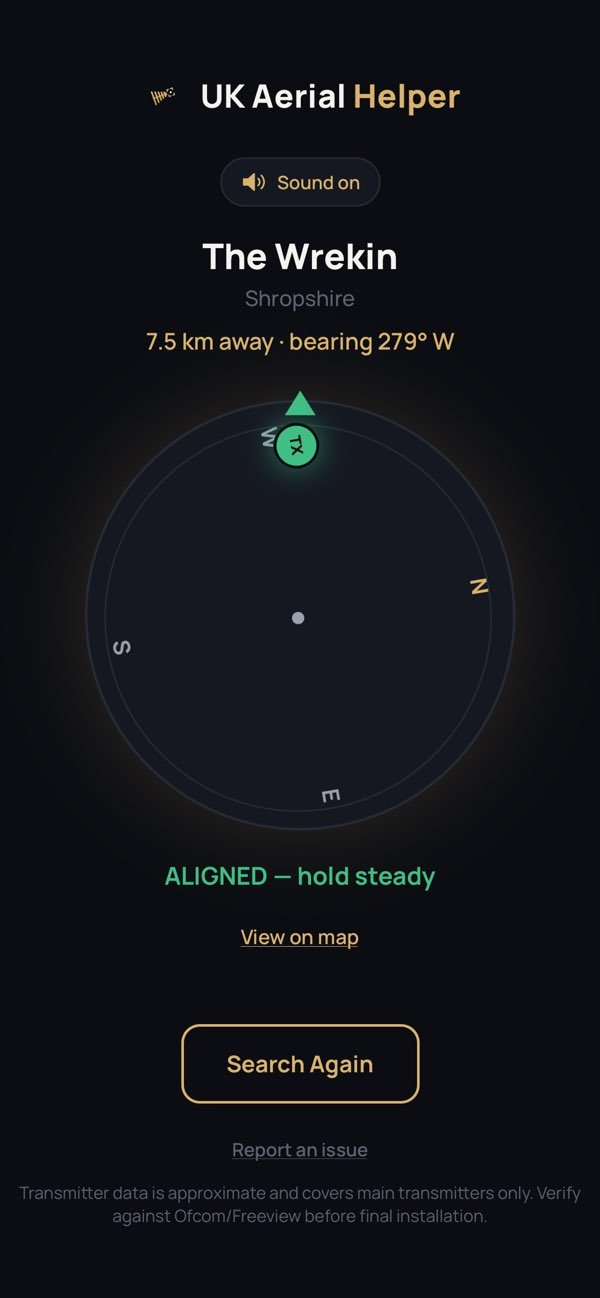
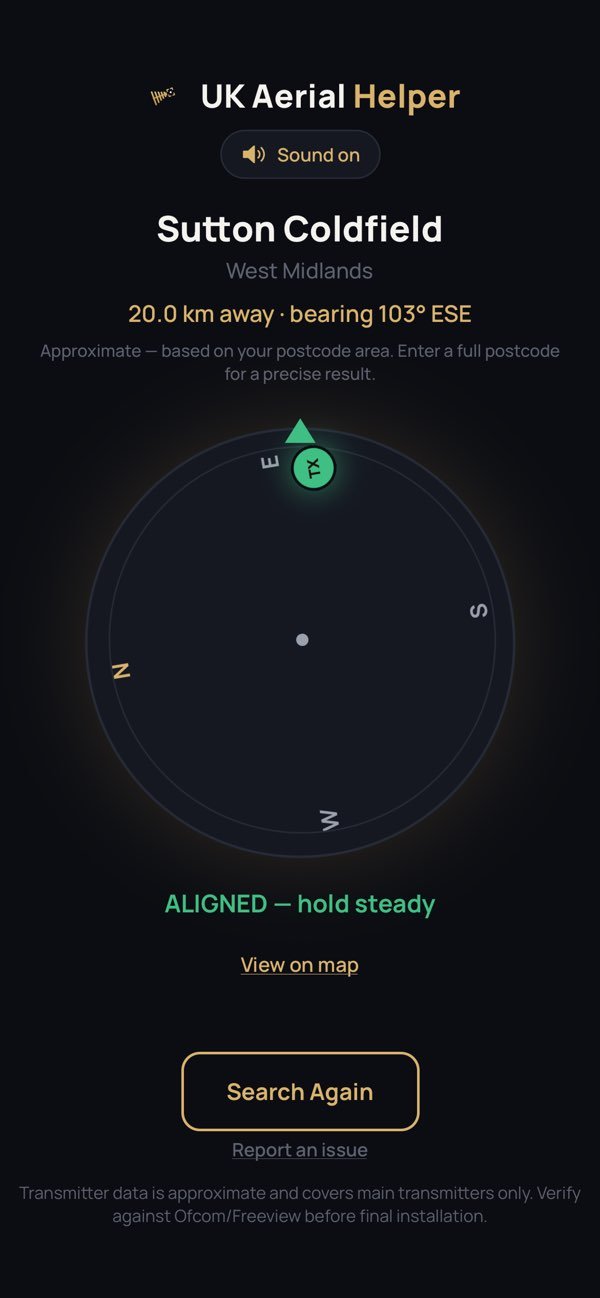
Check coverage for your postcode and house number. Compare the most likely transmitter with alternatives; nearest does not always mean best.
Match the aerial direction and polarisation to the chosen transmitter. Buildings and hills can affect reception.
Use your television’s signal quality display to assess reception. Check cables and connections before changing your setup.
Understand postcode results, likely transmitters, distance and coverage before choosing an aerial direction.
Read the guide → DIRECTIONLearn about compass bearings, aerial elements and horizontal or vertical polarisation.
Read the guide → RECEPTIONWork through no signal, pixelation, freezing pictures and missing Freeview channels.
Read the guide →Use a repeatable process for finding a transmitter, positioning a portable aerial and tuning at a new campsite.
Read the guide → RETUNINGLearn when a channel scan helps, when to check for a transmitter fault first and why repeated retuning can remove channels.
Read the guide →Your new address may use a different transmitter. Check the aerial connection and the channels already tuned before changing settings.
A new campsite can mean a new aerial direction. Check the local transmitter and aerial orientation before tuning your television.
Keep a note of the working TV input and tuning settings so the next person can get watching without starting again.
Start with the transmitter recommended for your address, then check its direction and aerial polarisation. A postcode alone cannot tell you exactly what your television is currently receiving.
A bearing is a direction measured clockwise from north: north is 0°, east 90°, south 180° and west 270°. Keep a phone compass away from metal objects when checking direction.
Horizontal polarisation means the short elements lie flat. Vertical means they stand upright. Match the transmitter’s specification, not just a neighbour’s aerial.
Your TV’s signal menu helps you assess actual reception. A map or compass shows direction; it does not measure the TV signal reaching your aerial.
Only adjust aerials you can reach safely from the ground. Leave roof work and work at height to a qualified installer.
Whether you have no TV signal, pixelation, a freezing picture or missing channels, start with a few checks before changing your aerial or retuning.
Check that the aerial cable is firmly connected and inspect accessible plugs for damage. Look at your TV’s signal quality display. Poor reception can have several causes, including interference, damaged cabling or aerial alignment. A stronger amplifier is not always the answer.
Polarisation describes the orientation of the aerial elements. These should match the transmitter you are using. Check the transmitter information before adjusting the aerial. Do not climb onto a roof to make changes; use a qualified installer for work at height.
Check your cables and whether there is a local transmitter fault first. Retuning during an outage can remove channels from your saved list. Follow your television’s instructions once reception has returned.
Each new location may need a different aerial direction and transmitter. Position a portable aerial clear of nearby obstructions where practical, check reception, then tune your TV according to its instructions.
A postcode helps locate your area, but different tools use different levels of detail. Some use a broad postcode area; address-level predictions can account for a more precise location. Check what a result represents before using its bearing to align your aerial.
No. Distance is only one part of reception. Terrain, obstructions and the transmitter’s coverage can make an alternative more suitable. A nearby transmitter may also carry fewer services than another option.
Yes. The app supports postcode entry or GPS location, with a live compass and bearing map to help with alignment. Its approximate dataset covers main transmitters, so verify your reception and suitability before final installation.
The most likely transmitter is a coverage prediction for your address. The nearest is simply closest geographically. Terrain, buildings, aerial position and transmitter coverage can make a more distant option more suitable. Check alternatives if reception is poor.
A multiplex, often shortened to “mux”, carries a group of TV and radio services together. A UHF channel identifies a broadcast frequency. It is different from the programme number you select on your remote, such as 1 for BBC One. Use the transmitter’s UHF information if your TV requires a frequency channel for manual tuning.
Transmitters do not all carry the same channel groups. Check the current allocation for your chosen transmitter before assuming a missing service is an aerial fault. A retune cannot add a service that the transmitter does not broadcast.
No. Coverage predictions are a useful starting point, but your aerial installation and local surroundings affect real reception. Confirm the result using your television’s signal quality display and the channels you can actually receive.
For current address-level coverage and UHF allocation, use Freeview’s detailed transmitter tool (new tab). For the official explanation, see which transmitter supplies your signal.
Add UK Aerial Helper to your Google Preferred Sources so our television reception and aerial guidance is easier for you to find in eligible Google results.
This is an official Google control. Your selection applies to your own Google experience.